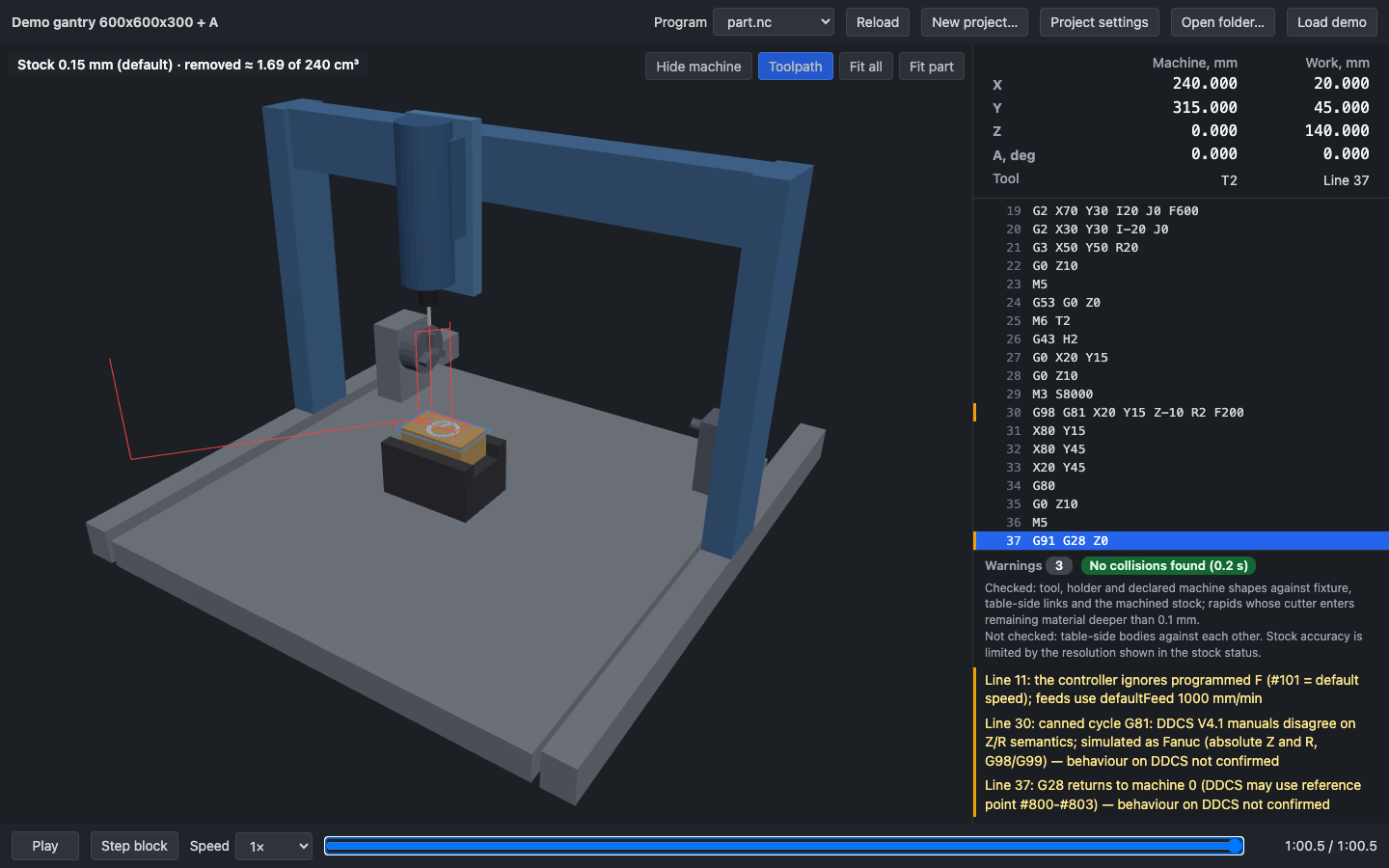
Figure 1. Default demo, part.nc (the figure predates the DryRun shell: the regions are the same, the look is not; figure 1a shows the G-code tab and the strip as they are). Stock status at the top left of the viewport; the toolbar and the nav cube at the top right; the DRO, the timeline and the transport in the strip under the viewport; the G-code tab on the right with the program, the code and Problems.
Header (top)
| Element | Meaning |
|---|---|
| DryRun mark and name (far left) | The Projects window, as Open. |
| Project name and the line under it | The name: the demo's (demo, demo-rotary, demo-wrap), the folder name for a project folder, <folder> (folder) for a program folder in quick view, <n> files (or the file's name) for opened or dropped files. Under it, the save state: Nothing open; Unsaved changes — the project was changed in the Project tab (section 4.5) or is a new project (section 4.5.8) and runs as an unsaved draft; Saved in this browser · just now (· 5 min ago, …; the online version: Saved to the cloud · …) for a project of My projects without changes; Not saved for a project that is not in My projects (the demo, a project folder); Quick view · not saved for programs without a project; online and not signed in, Guest · not saved. While the project has unsaved changes, the brand, Open, New, a card of the Projects window, a drop and "Create a project for these programs" ask first in a dialog Save changes to "<name>"? (figure 0b): Save saves it (section 4.5.7) and then goes on; Don't save drops the changes (with Open and the brand the project closes and the empty workspace stays behind the Projects window); Cancel (or Esc) keeps them. Reloading the page or closing the tab makes Chrome ask first ("Leave site? Changes you made may not be saved."); a new project without a program has nothing to lose and never asks. |
| New | A new project (section 4.5.8), in the Project tab, after the unsaved-changes question. |
| Open | The Projects window (the home modal, after the unsaved-changes question; the project stays behind it until you pick something): left, New project, Library of machines and fixtures (the Library, below), Open a folder… (Chrome's folder picker: a folder with setup.json opens as a project, files in sub-folders are found up to three levels deep; a folder without it but with program files opens in quick view — its top-level programs run on the machine and setup already loaded, or, with nothing open, on the default setup; a folder with neither is refused with "<folder>" has no setup.json and no program files (.nc, .ngc, .tap, .gcode)), Open G-code files… (one or more program files, in quick view), the drop box and Try the demo; right, your saved projects (section 4.5.7). With an unsaved draft kept from a closed tab and nothing open, a bar on top offers You have an unsaved draft from <time> — Restore · Discard (section 4.5.7). ×, Esc or a click outside close it. |
| Library | The Library of machines and fixtures (below), over the workspace; the project on screen stays as it is behind it. With nothing open it opens too, and no project is started. |
| Save | Saves the project among your projects (the Projects window, section 4.5.7); its tooltip is Save (Cmd/Ctrl+S), or Saved in this browser (online: Saved to the cloud) when there is nothing to save; Cmd/Ctrl+S does the same, Shift+Cmd/Ctrl+S is Export…. Amber while there is something to save — a project not in My projects yet or changes not saved; Saved with a cloud-and-tick icon, greyed, for a project of My projects without changes; greyed while the project has errors. Not shown in quick view, where Create a project for these programs makes a project of them (Cmd/Ctrl+S still saves). |
| Sign in / account (far right, online version only) | Sign in opens the sign-in dialog (section 4.5.9). Signed in: a circle with your email's first letter; click it for your email, Projects, Library and Sign out. |
| Quick-view strip (under the header) | While programs without a project are open: tag Quick view and a text built from the setup they run on and the T and H numbers they use, for example These 3 programs run on the default machine (Demo gantry 600x600x300 + A) with a vise and a 100 × 60 × 40 block. Tool T9 isn't in its tool table, so the setup doesn't match these programs — limits, collisions and the cut may be wrong for your job. On a project that was open it names that setup and its fixture and stock (no fixture, a vise, a vise open 86 mm (jaws 100 × 30, max 150), a mesh fixture (<file>)). Programs that look like GRBL output (task055) run, with nothing open, on the GRBL demo's setup (the Shapeoko 4 XXL, no fixture, the 300 × 200 × 18 sheet), and the strip says it is a guess and why (section 6.3, Guessing GRBL). Limits, collisions and the cut are computed against that setup, so they are only as true as the setup is for these programs. Create a project for these programs starts a new project with them (section 4.5.8). Opening a project folder or the brand removes the strip. |
| Files dropped | Files dropped on the Projects window's dashed box, or on the viewport, open in quick view; one dropped folder opens as with Open folder…. Anything else shows Drop G-code files (.nc .ngc .tap .gcode) or one folder. |
Library
The Library (header, the Projects window's Library of machines and fixtures, or the account menu's Library) holds the machines and the fixtures your setups are built from. It opens over the workspace, the full height of the window, and has the main window's layout: on the left the tabs Machines and Fixtures, a search field, + New machine / + New fixture, Import… and the list; in the middle a viewport with the selected item (a machine at its home pose — all axes at 0 on DDCS, at controller.home on GRBL —, a fixture alone on the ground; drag to orbit, scroll to zoom); on the right its fields. × or Esc closes it; the project behind is not touched by anything you do in the Library (a setup takes a copy when you choose an item, see below). The arrow keys move through the list (Home, End), ← → switch the tabs.
The lists. First the Catalogue — what comes with DryRun: the machines of the machines/ folder (section 4.2; the first is the default machine) and the Machine vise (the adjustable vise, jaws 100 × 30 mm along X, opening to 150 mm). Catalogue cards are read-only; their ⋯ menu has Copy to my machines (Copy to my fixtures), which is also the button under their fields. Then Your machines / Your fixtures, newest first, kept in this browser (online: in your account, section 4.5.9). Each card shows the name, a meta line and the date: machines 4 axes · X 600 · Y 600 · Z 300 mm · A rotary · DDCS V4.1 (axes, travel, controller), fixtures Box · 120 × 60 × 20 mm, Vise · jaws 120 × 30 mm along X, opens 150 mm or STL mesh · 440 × 60 × 10 mm; then DryRun catalogue or added Oct 12. The ⋯ menu of your own items has Rename (in place: Enter keeps the new name, Esc the old one), Duplicate (<name> copy) and Delete (it asks: Delete "<name>"? — The machine is removed from this browser. Projects that use it keep their own copy.).
Machines. Import… asks for a machine folder (machine.json at its top and its meshes; section 4.2): if it is a machine and every mesh reads, its machine.json and the meshes its links name are kept (nothing else of the folder) and selected; otherwise the reason is shown, for example machine.json: units must be "mm", and nothing is kept. + New machine starts from a copy of the default machine named New machine. The fields of your own machine: Name, the travel of each linear axis (X travel 0 to 600 mm — its joint limits; 0 must stay inside), the Controller (DDCS V4.1, GRBL 1.1, grblHAL) with Rapid feed, and for DDCS Ignore the program's F, use the default feed (#101) and Default feed, for GRBL Soft limits ($20); Spoilboard (mm) for a machine whose table link has one. The meshes and the kinematics stay as imported. Save writes them into the machine's machine.json; a value the loader refuses says why under the fields, for example link "x_carriage": limits must include 0 (the start pose), and nothing is saved. Changing the controller drops the other controller's switches (the file stays loadable).
Fixtures. + New fixture makes a box, New fixture, 100 × 100 × 20. A fixture of yours is a Box or a Vise (the Kind switch):
- Box — Size x, y, z (mm) and Mount offset x, y, z: a block standing where a fixture stands by default (centred under the tool at mid-travel, on the table), moved by the offset. In a setup it is a mesh the tool is checked against, like any fixture.
- Vise — Jaw width, Jaw height, Max opening (mm) and Jaws along X / Y: the adjustable vise of section 4.5.4, its jaws turned 90° about Z for Y. In a setup its jaws open to the stock.
Import… on the Fixtures tab takes an STL file as a fixture (STL mesh, named after the file); only its name can be changed. The viewport follows the fields as you type; Save keeps them.
Using the Library in a project. The Machine item of a setup lists the Library's machines (section 4.5.1) and the Fixture item its fixtures (section 4.5.4). Choosing one copies it into the project — the machine into machine/, a vise's parameters into project.json, a box as an STL file next to it, an STL's file — so a saved project never depends on the Library. A later change in the Library reaches a project only when you choose the item there again.
The panel's tabs (right)
The panel on the right (400 px; 340 px below 1280 px window width) has two tabs, and the tab is the mode:
- Project (setup): the project's settings as an accordion — the Stock card (its size: From program extents or a
measured block), the Setup 1 card with the items Machine, Fixture, Placement (which face of the stock rests
on the support, its turn about Z, its offset in the jaws, the height above them; section 4.5.5a), Tools, one Program
item per program (the work zero is set there; the main program says · main) and + Add program (the program list: add files, choose the main program, include or leave out programs), and the Check card (the project's summary: what to fix, what is assumed, the zero for the controller). One card is open at a time; a click on an item opens it in place with Apply (applies the pending edit and closes it) and Cancel (puts the project back as it was when the item opened). Edits apply as you type (after a short pause, at once on Enter or a choice), so the viewport follows while the item is open. Under the cards: the run line and Export…. A new project is made in the same cards (section 4.5.8); with nothing open they are empty and Setup 1 saysStart by choosing a machine— opening any item starts a new project there. - G-code (simulation): the program row, the code and the Problems block (section 2, Simulation). Opening or loading a project shows this tab.
Click a tab, or focus one and use ← →.
Viewport (left)
What is drawn:
- The machine links from their STL meshes, in greys: the root link (base, table) light grey, the first link on a linear joint (a moving gantry) mid-grey, the links further down that chain (X carriage, Z head) and every other link (rotary chuck, tailstock) dark grey. Tool-side collision shapes are not drawn; only meshes are.
- The fixture, dark grey.
- The tool, drawn from exactly the shapes the collision check uses (without the 0.25 mm inflation of section 7.4): holder dark, shank mid-grey, cutter light grey.
- The stock. Until the first part of the machined stock arrives from the background computation, and whenever it is not simulated, the blank is drawn translucent tan with a darker outline. After that the machined stock is drawn opaque at the playback time: faces of the blank in tan, faces created by cutting in bright metal grey (a mesh stock is tan everywhere). Playing shows the material disappearing behind the tool; seeking back, stepping or clicking a warning shows the stock as it was then. The shown cut is updated every 2 mm of tool path, so it can lag the tool by up to 2 mm.
- The toolpath: the path of the tool tip, light blue for rapids and ink (near black) for feed moves and arcs. The part already run, up to the last finished segment, is drawn in full colour; the rest is faded (light grey for feeds, pale blue for rapids), so at time 0 the whole path is faded. It is attached to the link that carries the stock (or the fixture, or the first work mount), so on the rotary axis it turns with A.
- If the project cannot be loaded, the viewport is covered by a red list of every load error.
The verdict (bug080: the tag in the Problems header of the G-code tab, and the same word after the save state in the
header, for example Unsaved changes · Do not run, so it stays in view on the Project tab). Always a word, never colour
alone; hover the tag for the whole sentence:
| Tag | Look | When (the sentence in the tag's title) |
|---|---|---|
Checking 37% |
blue word | The background check runs; nothing is a result yet. |
⚠ Do not run |
red, with a warning triangle | At least one collision or axis-limit violation, or a line the GRBL controller rejects (task055): 2 collisions · 2 axis-limit violations; 4 rejected lines — GRBL rejects line 2 (error:20); the sender stops the job there (wrongpost.nc of the GRBL demo). A rejected line stops the job on the machine part-way, with the spindle on and the tool possibly in the material. While the check runs the sentence says … so far — still checking. The first row of Problems has Show: pause, jump to the first problem, select it, frame a collision. |
Incomplete |
amber | Something was not simulated or not checked, and nothing critical was found: 3 lines were not executed. Everything after line 12 may be wrong. (the count of section 7.11; line 12 is the first such line); 2 lines use axis A, which this machine does not have.; The stock model stopped at line 7 — later moves are not checked against the stock. (section 7.6); the collision check's own reason when it was skipped or failed (Collision check skipped: …); Stock not simulated: <reason> — nothing is checked against the stock. The row of the first line not executed (or of the stock model's stop) has Show; when the program needs an axis the machine lacks, that row has Choose a machine, which opens the Machine item. |
Not simulated |
grey | Nothing was checked: the collision check was skipped (or failed) and the stock was not simulated. |
✓ Clean |
green, with a check mark | No collisions, all moves within limits, nothing missed. |
A run whose stock is not simulated is never shown as clean (bug031): the tag says Incomplete and its title says why.
Stock status (the G-code tab: a muted line under the Problems header; bug091). Always one of these, or nothing when setup.json has no stock. The first two are progress: they are shown as the viewport's hint at the top left (unless a hint of the Project tab is shown) and the line stays empty until the result.
| Text | Colour | Meaning |
|---|---|---|
Simulating… 37% · stock computed to 0:42.0 |
ink | The program is being cut and checked in the background, in program order; 37 % of its segments are done and the machined stock is known up to program time 0:42.0. Playing, seeking and stepping work meanwhile. At a playback time past 0:42.0 the stock is shown as far as computed while the tool keeps moving. The text starts as Simulating… 0% · stock computed to 0:00.0. |
Drawing stock… — the uncut stock is shown until then |
ink | The computation has finished and the final stock is being requested; normally visible for one frame or not at all. |
Stock 0.15 mm (default) · removed ≈ 3.98 of 240 cm³ |
ink | Done. The resolution used ((default) when stock.resolution is not set) and the volume removed up to the shown moment, out of the blank's volume on the grid. Both volumes are approximate (section 7.3) and shown to at most three significant digits. Hover over it for the explanation: The machined stock is computed on a grid of rays this far apart (setup.json stock.resolution; the default depends on the stock size). Surfaces are exact along the rays; features thinner than the resolution, burrs and sharp edges may be rounded or missing. Straight moves are cut exactly, arcs within 0.01 mm, moves that turn the stock within 0.05 mm. The shown cut follows the tool by up to 2 mm. |
| The same text, with one or more lines under it | dark red | Done, but the material removal reported a problem; each line under the status is one of its entries, as in the Check list. Today that is Program: stock mesh is not closed: <n> rays crossed it an odd number of times and were left empty. |
Stock stopped at line <n> (memory limit) — use a coarser resolution |
dark red | The stock model reached its 1 GB limit while cutting line n. Under it: Line <n>: material removal stopped: the stock model reached its 1 GB limit — set a coarser stock.resolution in setup.json. Everything after line n is shown uncut, and rapids after it are not checked against the stock (section 7.6). |
Stock not simulated: <reason> |
dark red | Nothing was cut; the translucent blank stays. The one reason you can meet with a valid project is material removal skipped: rotary joint of link "<name>" is on the tool-mount branch (the collision check is skipped too). An internal failure also ends up here. Nothing is checked against the stock in this state. |
The viewport's chrome. Top left: a hint when the panel asks something of the viewport (jogging in Work zero: Jogging — the tool shows where the spindle is. Set zero when the tip touches the point.; the Work zero's Click way: Click a snap point on the stock) and, with neither, the run's progress while it computes (Simulating… 37% · stock computed to 0:42.0, then Drawing stock…). Nothing stays there: the stock status itself is the line under the Problems header in the G-code tab. Top right: the toolbar and, to its right, the nav cube. Bottom left: the axis triad (X red, Y green, Z blue), turning with the camera.
| Control | Key | Meaning |
|---|---|---|
| Isometric (cube) | 0 | Frames everything shown from the front-right-top, at 45° to each axis. |
| Fit all (corners) | F | Frames everything shown, from the front-right-top: the whole machine, or, with layers hidden, what is left. The toolpath is not used for the framing (a rapid to machine zero would make the part tiny). |
| Fit part (corners and a square) | Shift+F | Frames the stock from the direction you are looking now, so it fills most of the viewport (5 % margin). It uses the blank's own box at the current pose (on the rotary mount, turned to the current A), not the machined stock. Disabled, with the tooltip No stock in the setup, when setup.json has no stock. |
| Perspective / orthographic | P | Switches the camera; the view keeps its direction and size. Pressed (amber) while orthographic. |
| Show ▾ (eye) | A menu of check boxes, all on by default: Machine (the links), Fixture, Stock (the blank and the machined stock), Toolpaths, Zeros (the labels and triads of the open program's zeros, and the Click way's snap dots). Hiding the machine shows the part; hiding the toolpath shows the machined surface of a dense program. The layers keep their setting when you switch programs or reload. | |
| Nav cube: TOP, FRONT, RIGHT | A click on a face looks from that side (from above with +Y up, from the front along +Y, from the right along −X), framing everything shown. |
The fit and view buttons change only the camera, never what is shown, and act once per click: during playback the camera does not follow the part.
Collision highlight. The two bodies of a collision are tinted red and their red edges are drawn on top of everything, so a part hidden behind others still shows (as an outline; a large body such as the table does not cover the bodies in front of it).
- While playing, seeking or stepping, a pair glows while the playback is inside a segment with a collision entry, past the point where that contact starts, and only while the two bodies still touch at the current pose. Pairs with the stock never glow this way (the touching test has no access to the machined stock); they glow only when their entry is clicked. A tool part completely buried in a body can make the glow drop out and flicker (seen in
overtravel.nc), and segments that were merged into an earlier entry of the same line are not highlighted. - Clicking a collision row in Problems pauses, jumps to its first touching sample and pins the glow to that entry's pair (stock pairs included); Show on that row (and
Show first problem →) also frames the contact from the current direction. The glow stays pinned until you play, seek or step. - The machined stock is tinted without the edges, so the cut stays visible.
Axis-limit envelope. While an axis-limit entry is the one jumped to (clicked, or Show first problem →), the travel box of the tool tip is drawn as red edges: the tip of the current tool at the eight combinations of the X, Y and Z joint limits, with A at 0. It goes away when you play, seek or step. A machine with an axis without limits shows no box.
Mouse and keyboard controls (mouse: three.js OrbitControls defaults):
| Action | Mouse or key |
|---|---|
| Rotate around the target | Left button drag |
| Pan | Right button drag, or Shift/Ctrl/Cmd + left button drag |
| Zoom | Mouse wheel, or middle button drag |
| Isometric | 0 |
| Fit all | F |
| Fit part | Shift+F |
| Perspective / orthographic | P |
The keys work anywhere in the window except while a text field, the seek slider or a drop-down list has the focus, and not with Ctrl, Cmd or Alt held (Ctrl+F / Cmd+F stays the browser's find).
Simulation (the G-code tab and the strip under the viewport)
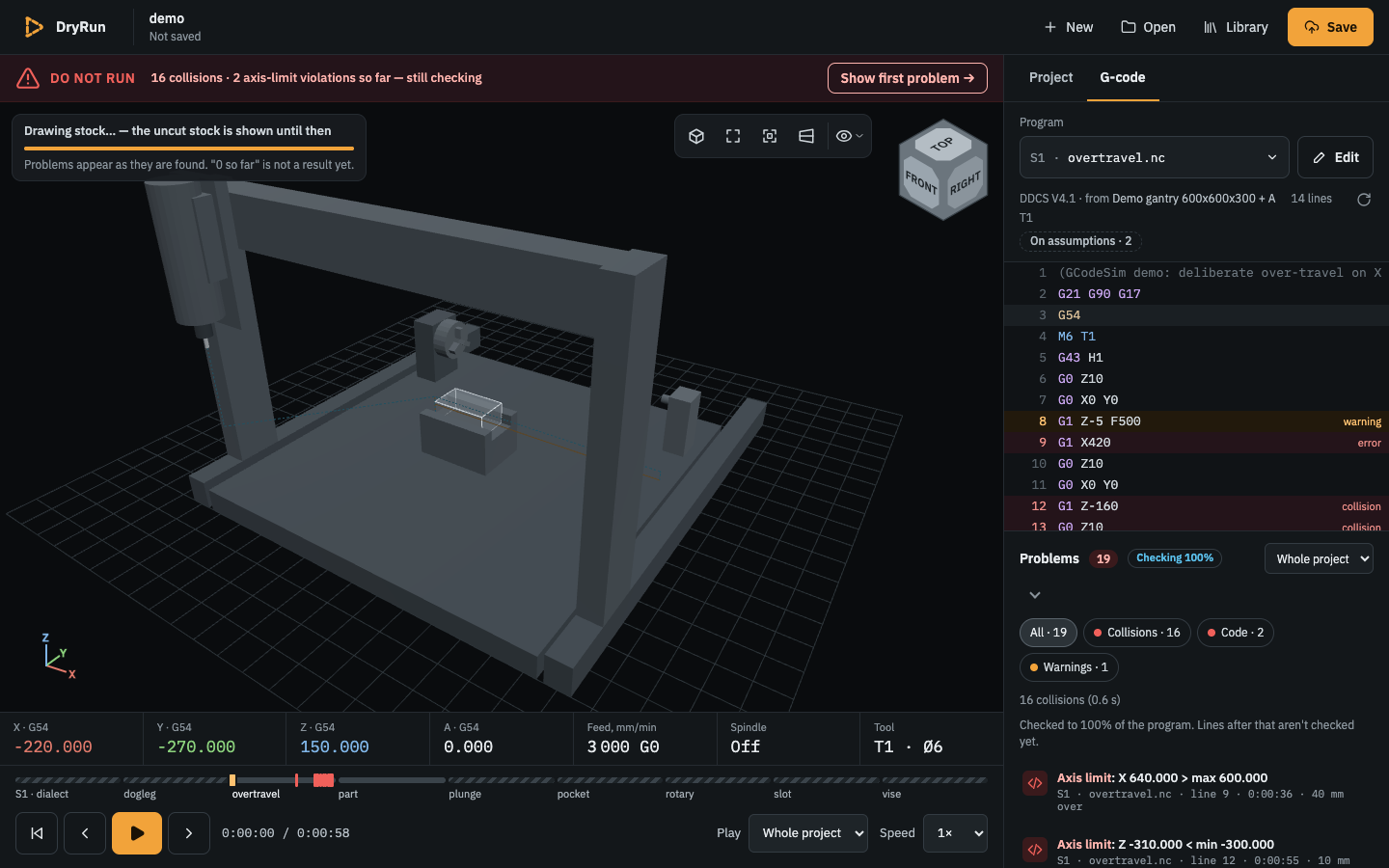
Figure 1a. overtravel.nc of the demo: the program row and the code with its problem lines on the right, Problems with
the chips under it; under the viewport the DRO, the timeline of the project's programs and the transport.
The program row (top of the G-code tab):
| Element | Meaning |
|---|---|
| Program | The selected program as S1 · <file> (S1 = setup 1; S2 · back.nc for a program of setup 2). Click it (or Enter, ↓) to open the list titled Programs in this project or Programs in "<folder>". With several setups the list holds every program of every setup, grouped under Setup 1, Setup 2…; choosing a program of another setup opens that setup on it (the setups before it are recomputed first where their inputs changed, with the progress on the viewport's hint), as a click on its card in the Project tab does. The list holds every file in the project with the extension .nc, .ngc, .tap or .gcode (upper or lower case), including files in sub-folders, sorted by path; in a program folder the program files at the top level of that folder. At load, the program named in setup.json is selected. Clicking a program, or ↑/↓ and Enter, runs it; Esc or a click elsewhere closes the list. Each program in the list has a status tag: Checking 37% while collisions and the stock are computed; Problems — at least one collision, axis-limit violation or rejected GRBL line; Incomplete — lines were not executed, or the check itself was incomplete (collision check skipped or failed, stock not simulated or stopped at its memory limit); Not simulated — nothing was checked; Clean — the check finished with none of those (warnings and the caveats still apply: a clean result is not proof). Programs not run in this session show Not checked; opening another project starts again from Not checked. |
| Edit (pencil) | Opens the Project tab on this program's item of Setup 1 (its work zero). Below 1280 px only the pencil shows. |
| The line under it | The dialect and where it comes from, the line count and the tools the program uses, for example DDCS V4.1 · from Demo gantry 600x600x300 + A 40 lines T1, T2 (GRBL, grblHAL on those machines). |
| Reload (circular arrow, at the end of that line) | Re-reads every project file (JSON, STL, programs) and runs the selected program again; the camera stays. In a program folder it re-reads the folder's file list and the selected program. A project of My projects re-reads its programs from the program folder it was made from (Chrome may ask once per session to let the site view the folder), else its stored copy; a re-read program that differs from the saved one makes the project Unsaved changes, and a Reload that changes nothing leaves it saved. If the program you were looking at no longer exists, a message says so for 3 seconds: <old> no longer exists — showing <new>. |
| Setup tag | Whether the results rest on guessed inputs (task041). In quick view: Default setup when the programs run on the default setup, Setup of "<project>" on the project that was open. Otherwise On assumptions · N (dashed): N things are still assumed rather than measured — the tools without "measured": true (all of them count as one), the stock without it (or no stock), no fixture; hover for the list. ✓ Measured setup when every tool and the stock are marked measured and a fixture is modelled (section 7.1). A click (or Enter) opens the Project tab's Check card. |
The code. The program text with line numbers, in a monospace font. G words are tinted violet (G0–G3 and the other G
codes), the work offsets G54–G59 amber, T, M and S words blue, comments grey. The executing line has an amber bar on
the left and an amber row, and the view scrolls to keep it in sight while playing. Lines with problems have a tinted row
and a word on the right: collision and error in red (a collision; an axis-limit violation, a line not executed, the
stock model's stop or another error), warning and note in amber. Click a line to pause and jump to the end of its first
move (a line without a move does nothing).
Problems (under the code):
Header:
Problems, the number of entries (red when there is an error), the status tag (as in the program list:Checking 37%,Do not run,Incomplete,Not simulated,Clean), the scope and the collapse arrow, which hides the chips and the list and gives the code the room. The tag is the project's worst verdict: when another program run in this session is worse than the one on screen (and its run is not stale), the tag shows that one's word and its tooltip says which, for exampleDo not run: S1 · overtravel.nc (the project's worst). This program: Clean — No collisions, all moves within limits; the program list keeps each program's own tag. The header's save-state line repeats the word.Scope:
This program(default) lists the program on screen.Whole projectlists the problems of every program run in this session, in every setup, by the project's time (the timeline's): the monospace line starts with the setup and the program (S2 · back.nc · line 40 · 0:03:10). Rows of a run whose inputs changed since (an edit of its setup or of a setup before it) are dimmed and end with↻ stale; play or select that program to run it again. The count and the chips follow the scope. Clicking a row of another program shows that program (opening its setup first) and jumps to the problem.Chips:
All · 19,Collisions · 16,Code · 2,Warnings · 1— a click shows only that kind. Collisions are the collisions found on program lines. Code is what breaks or stops the run: axis-limit violations, lines not executed (an error, or a warning for a skipped line), lines a GRBL controller rejects, the stock model's stop, a skipped collision check. Warnings is everything else, the notes included.Collision status, a muted line under the chips while the check runs, or when it was partial, skipped or failed (bug093: a finished result is in the tag, and
No collisions found (0.4 s)is the Collisions chip's row when it has none):Text Meaning Checking collisions… 37% — 2 collisions so farThe check runs in the background, in program order, together with the material removal. Collisions appear in the list as they are found and can be clicked at once; the program after 37 % is not checked yet, so 0 collisions so faris not a result.No collisions found (0.4 s)The check ran on every link and found nothing. The seconds are the time the whole pass took. No collisions found (0.4 s) — 2 machine links not checkedSame, but tool-side links with a mesh and no collision shapes were not checked (a whole-program entry names each). 3 collisions (0.4 s)Collisions were found (with — 2 machine links not checkedappended when that applies).Collision check incomplete: stock model stopped at line <n> (memory limit) — later moves are not checked against the stockThe stock model stopped at line n (section 7.6); nothing was found before or after it. Never shown as Clean.<k> collisions — check incomplete after line <n>Collisions were found, and the stock model stopped at line n. Collision check skipped: <reason>The machine has a joint arrangement the check does not support; nothing was checked (section 7.4). Collision check failed: <error>Internal failure of the check. Note under it while the check runs:
Checked to 37% of the program. Lines after that aren't checked yet.A chip without rows says so in one row (No problems found,None so far — still checking).What is checked, a closed disclosure under the rows once the check found no collision. With a stock:
Checked: tool, holder and declared machine shapes against fixture, table-side links and the machined stock; rapids whose cutter enters remaining material deeper than 0.1 mm./Not checked: table-side bodies against each other. Stock accuracy is limited by the resolution shown in the stock status.Without a stock:Checked: tool, holder and declared machine shapes against fixture and table-side links./Not checked: table-side bodies against each other. No stock in the setup: nothing is cut and nothing is checked against a stock.It is a reminder, not the full list; section 7 is.The rows. An icon (a red burst for a collision, a red
</>for Code, an amber triangle for a warning), the title — the kind and the message, for a collision what touches what, for exampleCollision: holder T1 hits stock(bug085; hover the row for the machine point,Machine X 220.000 Y 270.000 Z -170.000 A 0.000) — and a monospace lineS1 · overtravel.nc · line 12 · 0:00:46with a detail when there is one: how deep a cutter cuts into a spoilboard (1.4 mm deep), else a collision's point in work coordinates as the DRO shows them (X 0 Y 50 Z -20), how far past an axis limit (40 mm over), GRBL's error number (error:20 · job stops),line skipped,stock stopped. Whole-program entries saywhole programinstead of a line and a time. The time is the project's: where the problem happens on the timeline under the viewport (the programs before this one included). The kinds areCollision,Axis limit,Not executed,Stock,Note(the "not confirmed on DDCS" class — unconfirmed and unsupported codes, macros, an ignored F, a move without F; on a GRBL machine alsono tool change in program — GRBL ignores T; …, the normal one-tool-per-file case) andWarning(everything else, including a machine link not checked). Order: collisions, axis-limit violations and lines not executed first, then everything else, each group by line.Click a row, or Tab to it and press Enter or Space: playback pauses and jumps to where the problem starts (for a collision, the first sample where the bodies touch), the line is highlighted in the code, and the row is marked (amber, red for an error) until you play, seek or step. The list is one Tab stop (bug088): ↑ ↓ move between the rows, Home and End to the first and the last, → to a row's Show and ← back. The marked row of a collision has Show: the same jump, and the camera frames the contact of the two bodies from the current direction (about 12 times the contact's size across, at least 120 mm). The first row also has Show while the verdict is
Do not runorIncomplete(bug080).The code view is one Tab stop too: ↑ ↓, Page Up / Down, Home and End move a line cursor, Enter seeks to that line as a click does. While playing, the current line stays about a third from the top, so the next lines are visible. A warning inside a subprogram appears once per pass (known).
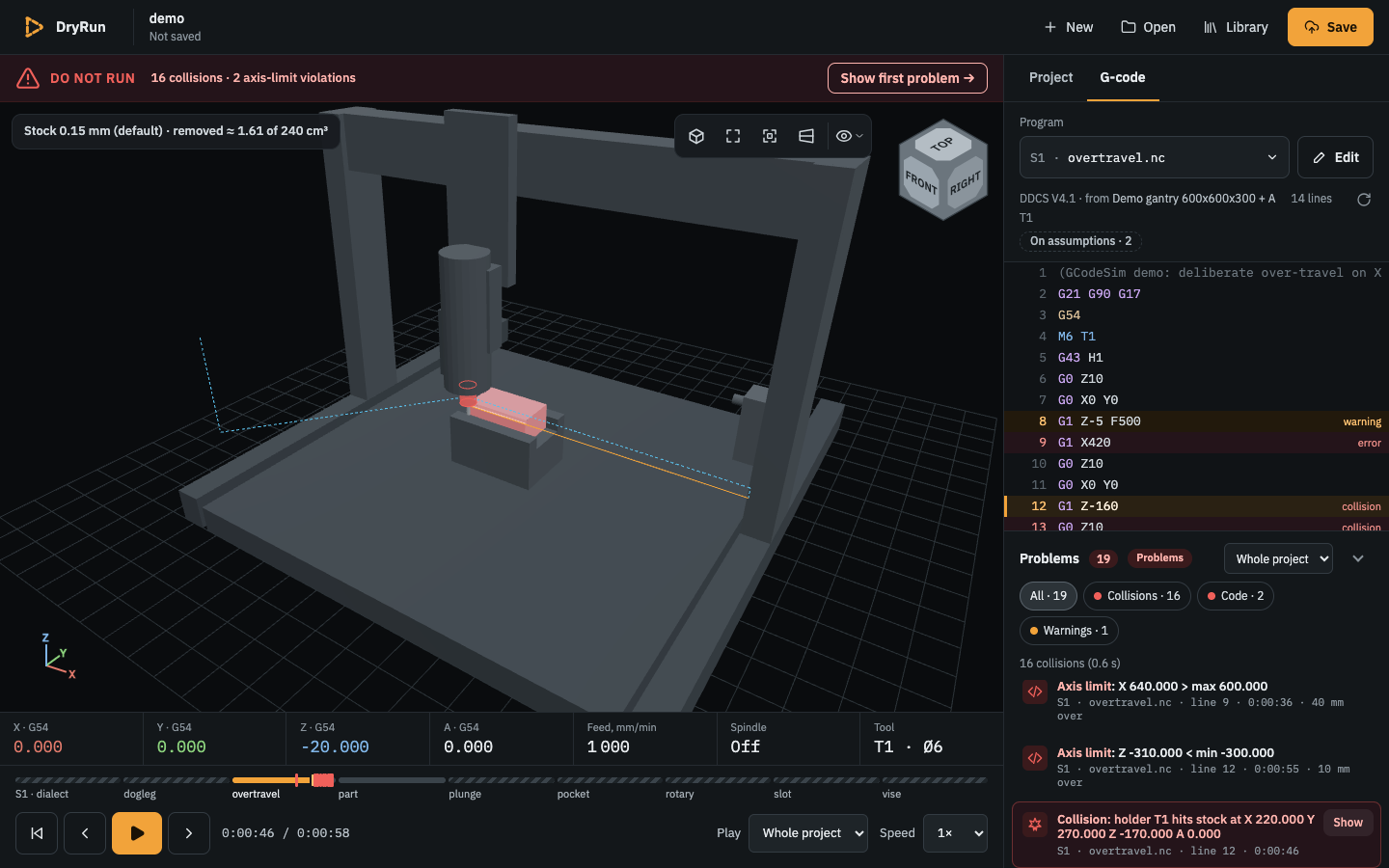
Figure 2. overtravel.nc after clicking the row Collision: holder T1 hits stock (machine point X 220 Y 270 Z −170) and
Show: holder and stock glow red, line 12 is highlighted, the row is marked and has Show.
The DRO (the strip under the viewport, top): X · G54, Y · G54, Z · G54 — the position in the work offset of the
current move (the machine value minus the work offset, G54–G59 plus G92, and on Z minus the active tool length offset; the
label changes to G55 while a G55 move runs; at time 0 the first move's offsets, a known limitation); an A · G54 cell
only when the machine has an A joint; Feed, mm/min of the current move (3 000 G0 for a rapid at the rapid rate, –
for a dwell or before the first move); Spindle — the S speed while M3 or M4 runs, Off otherwise; Tool — T2 · Ø8
(the number and the diameter from the tool table), – for none. Under each axis value, small and muted, its machine
coordinate (MCS 640.000, bug086): compare it with axis-limit messages and the controller's soft limits.
The timeline (under the DRO): one bar through the whole project — every program of every setup in order — the first
program of each setup labelled with the setup (S1 · part, dialect, …, S2 · back), the others by name (without the
extension). A program is as wide as its run time once it has been run in this session (also when a later setup's
recompute ran it); a program not run yet is hatched and as wide as an estimate (its line count × the average seconds per
line of the programs run so far). A program whose run is stale — its setup or a setup before it changed since — is
hatched with ↻ after its name (hover: ↻ stale: its inputs changed, recomputed when played). No part is a sliver
(bug082): the current program takes at least 27 % of the bar, every other at least 6 % (less with very many programs).
The current program is the part with the playhead: amber up to the current time, red ticks at its problems (the
Collisions and Code rows; a darker tick for a line not executed; hover a tick for Collision · S1 · overtravel · 0:01:46
— the project's time —, click it to jump there as the row does; Tab from the bar reaches the ticks in time order, Enter
jumps; ticks within 0.1 % of the program's time and of the same kind are one). The other programs run in this session
keep their ticks too; a click on one jumps there. Click or drag on the current part to seek, or focus it with Tab and use
the arrow keys (the other programs' parts are mouse shortcuts and not Tab stops, bug094). While the background computation
runs, the current part is mid grey up to the time the stock is computed to and dark after it. Programs before the current
one that ran in this session are amber, those after it grey. Click another program's part to seek there: that program
is shown at the point clicked (a program of another setup opens that setup first, on the material the setups before it
left — recomputed first where their inputs changed, with the progress on the viewport's hint). To the right of the
buttons: elapsed / total of the whole project in h:mm:ss (the programs not run yet by their estimates); hover it for
the current program's own part.nc: 0:00:12 / 0:00:58. The run times are estimates from feeds and the rapid speed only,
without acceleration, so the real run takes longer.
The transport (bottom):
| Control | Key | Meaning |
|---|---|---|
| To start | Home | Pauses and goes back to time 0. |
| Step back | ← | Pauses and moves to the end of the block before (where Step would have stopped), or to the start. |
| Play / Pause (amber) | Space | Plays from the current time; at the end, Play starts again from 0. |
| Step forward | → | Pauses and moves to the end of the next block: one execution of one line. A canned-cycle line or a dog-leg rapid is one step; each pass through a subprogram is its own step; a zero-length dwell (G4 P0) is a step. |
| Play | What Play runs: Whole project (default) plays on into the next program of the project when a program ends — into the next setup too, which opens first (the setups before it are recomputed where their inputs changed, with the progress on the hint); Setup 1, Setup 2… play on within that setup's programs (from a setup before it, into its first program) and stop at its last; the program's own name stops at its end. A program it goes on to is loaded and checked first, then plays. |
|
| Speed | 1× (default), 10×, 50×, Max (500×) of the estimated real time. |
Space works also when a button has the focus, but not in a text field, the seek bar or a drop-down list, not with Ctrl, Cmd, Alt or Shift held, and not while a dialog is open. ← → and Home work the same way, except in the panel and the header, whose lists and tabs use those keys.