After this page you can read a result: the verdict word and each kind of row in the Problems list. What DryRun does not check says what a result leaves out.
The verdict
The verdict is the tag in the header of the Problems list on the G-code tab. The top bar repeats it under the
project's name. Hover the tag to read the whole sentence, for example
17 collisions · 1 axis-limit violation — the machine stops on line 10; the rest of the job does not run.
| Verdict | What it means |
|---|---|
Checking 37% |
The check is still running. Nothing is a result yet. |
Do not run |
At least one collision, one move past an axis limit, or one line your controller rejects. |
Incomplete |
Nothing critical was found, but part of the program was not simulated: skipped lines, an axis the machine does not have, or a stock model that stopped. |
Not simulated |
Nothing was checked: the collision check did not run and the stock was not cut. |
Clean |
No collisions, all moves within the limits, no line skipped. It does not mean the program is safe. |
Not checked |
The program has not run since you opened the project or changed it. Select it to run it. |
Not reached |
An earlier program of the same setup stopped the job, so this one never starts. |
The tag shows the worst verdict among the project's programs, and its sentence names that program. The program list, which opens when you click the program's name, shows each program's own verdict.
The rows of the Problems list
Each row starts with its kind. Under it are the program line, the time and a detail such as 40 mm over · job stops.
Collisions, axis limits and lines not executed come first, then the rest by line.
| Row | What happened | What to do |
|---|---|---|
Collision: shank T1 hits stock |
Two bodies touched. The first is the cutter, the shank or a part of the machine by its name. The second is the stock, a fixture or a part of the machine. | Look at it in the viewport (below), then fix the program or the setup. |
Collision: cutter T1 hits stock on a rapid move |
A rapid took the cutter more than 0.1 mm into material that is still there. | Raise the retract in the program, or check the work zero and the stock size. |
Axis limit: X 640.000 > max 600.000 — the machine stops here … |
A move leaves the machine's travel. The run ends there: nothing after it is simulated or checked. | Move the work zero or the stock, or check the travel of your machine. |
Not executed: … |
DryRun skipped the line, so the path after it can differ from the real one. On GRBL and FANUC a line the controller rejects is such a row, with error:20 · job stops or the alarm, and the verdict is Do not run. |
Read the reason in the row. Most are fixed in the CAM post. |
Stock: … |
The stock model reached its memory limit. Later moves are not checked against the stock. | Choose a coarser resolution for the stock. |
Warning: … |
The line runs, but the machine may do something else than you expect, for example G43 H2 while T9 is active. |
Read it and decide. |
| A row with no kind | A note: an assumption about your controller, or a code whose behaviour is not confirmed. | See the page of your controller. |
The buttons All, Collisions, Code and Warnings over the rows filter the list. Code holds the axis limits
and the lines not executed. Scope switches between this program and the whole project.
It checks collisions and the cut stock for the selected program only: the whole project lists the programs run since
you opened it. Select each program before you rely on the list.
See a problem in the viewport
- Click the row. Playback pauses and jumps to where the problem starts. The line is marked in the code.
- Click Show on the row. The camera frames the contact, and the two bodies glow red.
- Press the step buttons under the viewport to move one program line back or forward.
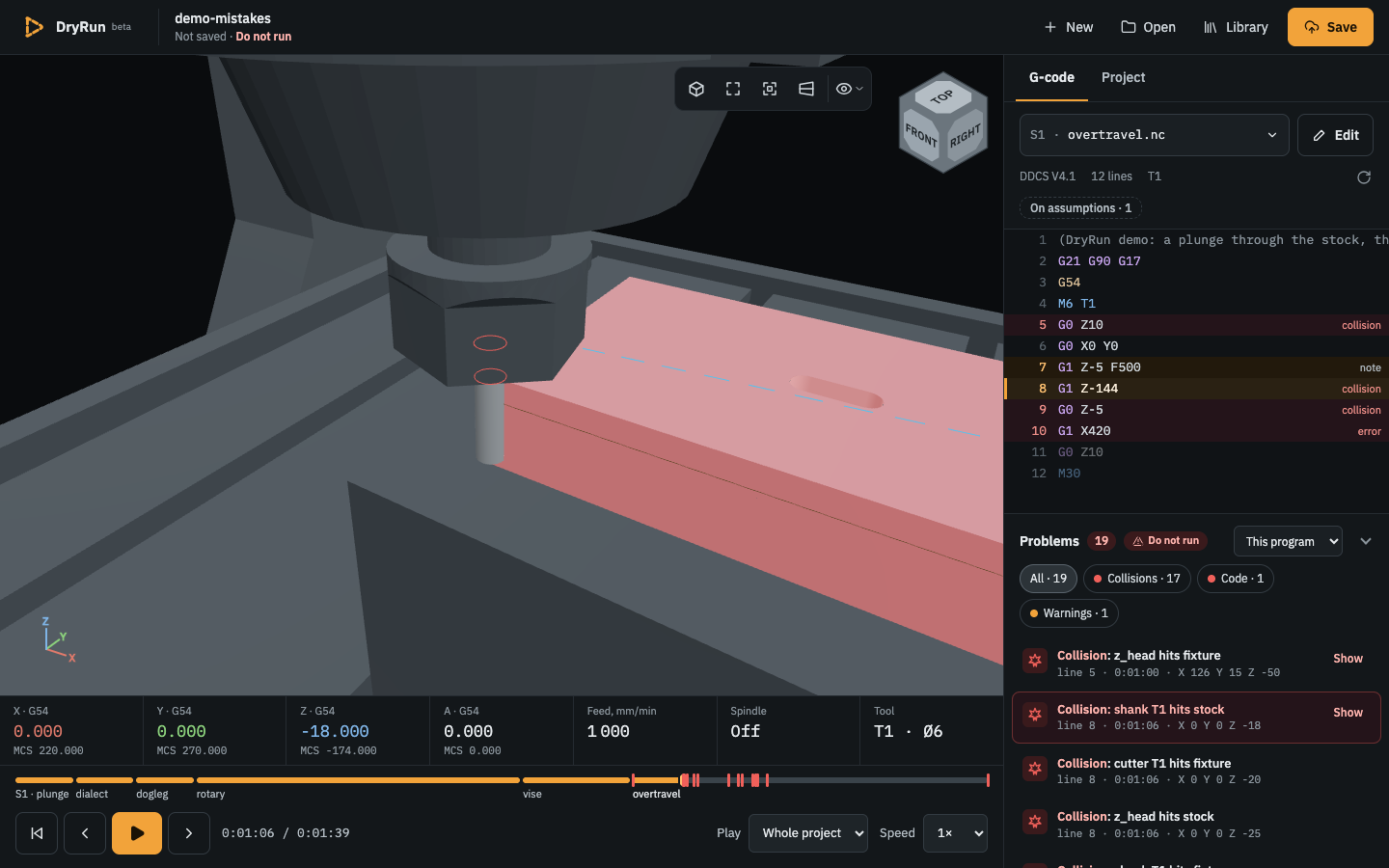
For an axis-limit row the viewport draws the machine's travel as a red box. Under the viewport, each axis shows the
work coordinate and, in small type, the machine coordinate (MCS).
The timeline
The bar under the viewport is the whole project: every program of every setup, in order. The programs of one setup run as one job. Each starts where the one before it ended, with the same tool, on the stock the earlier ones cut.
A red tick marks a problem: click it to jump there. A hatched part has no result yet, and its width is an estimate from the line count. The times ignore acceleration, so the real job takes longer.
Stale and Not reached
Stale means that you changed something after the program ran: a tool, the stock, a zero, or an earlier program.
The timeline marks the program with ↻, and its old rows end in ↻ stale. Select or play it to run it again.
Not reached means that an earlier program of the setup stopped at an axis limit. The program shows only
Not reached — the job stopped in overtravel.nc on line 10. Fix the program that stopped. The next setup still runs.
On assumptions
The tag over the code says On assumptions · 3 while values are assumed. It says ✓ Measured setup when every tool
comes from a library, the stock is your measured blank and a fixture is modelled. It does not check those numbers.